How to Schedule Automatic Call Centre Reporting
Call centre report emails give call centre supervisors or office managers (with call centre functionality enabled) the ability to request emails in a variety of formats and time windows. Advanced settings also allow the supervisor to pick a few of their most important statistics to be viewed prominently in the email body.
Follow the steps below to set up Call Centre Reporting
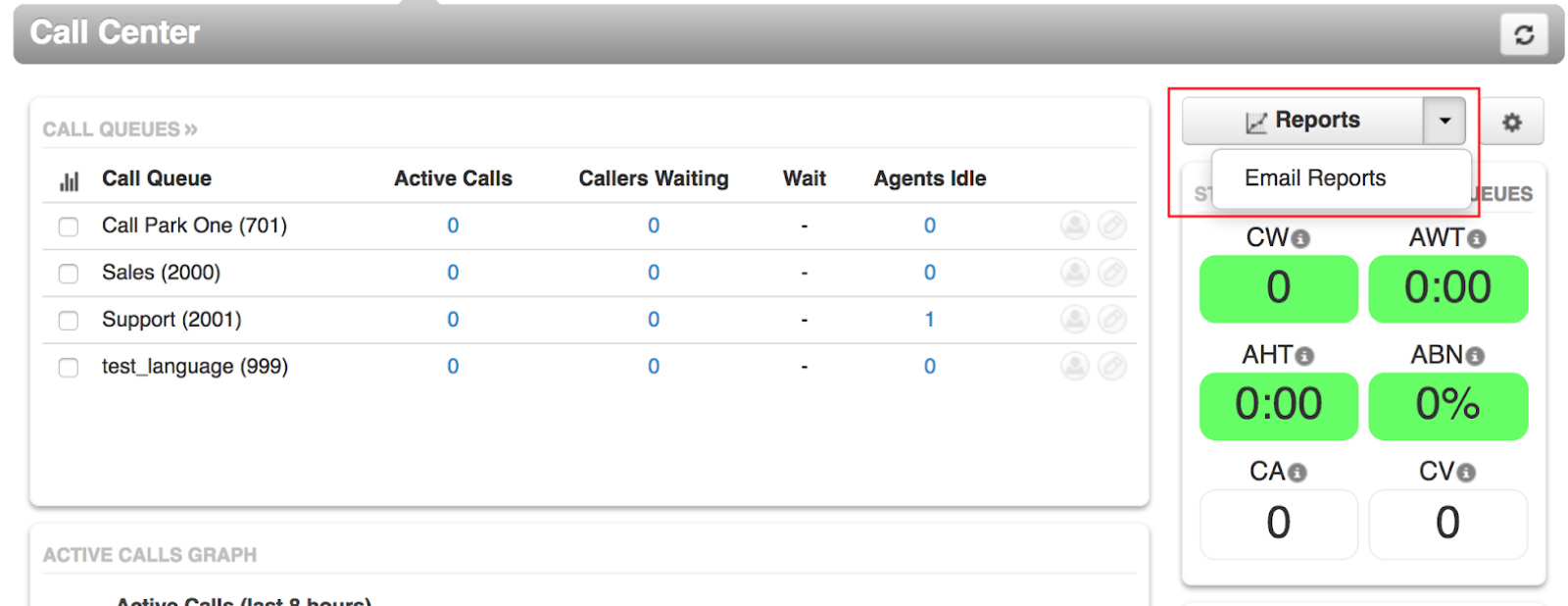
- Log into the Portal with a scope of Call Center Supervisor and navigate to the Call Center screen.
- Select the Reports sub-menu, then Email Reports.
- The call centre reporting emails can be sent in varying frequencies including monthly, weekly, and daily. There are four types: Call Queue, Agent, Dialed Number, and a Summary report that includes the top data from each. Anywhere from one to all of the types and frequencies may be selected.
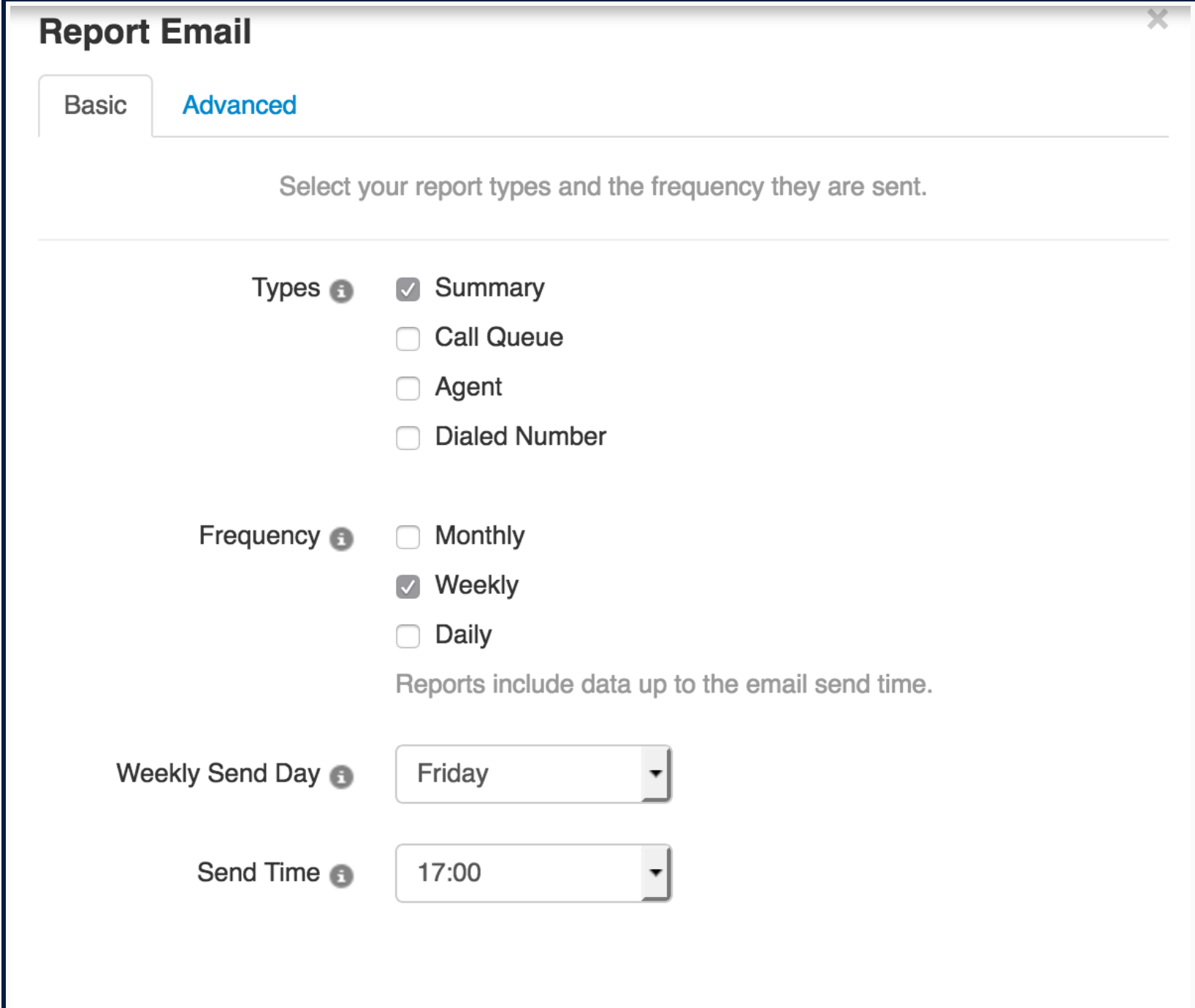
- Depending on the time period selected, the supervisor will be prompted to enter applicable time and date settings. For instance, a daily report will require the supervisor to set a time, and a weekly report will require a day of the week and time. The monthly report will require a day of the month and send the previous month's data on that day; setting it to 1 will send the full previous calendar month.
- Follow the on-screen prompts to configure the basic options, then select Next to continue.
- In the advanced options you can customize the contents of the reports for the varying statistics. These lists of statistics will vary based on the types of reports requested in the basic tab.
- Up to four extra email addresses can be added to receive the given reports.
- If the supervisor would like the raw data including all available statistics, check Attach CSV to Email.
- When the configuration is complete, select Save. The email reports will then be scheduled.
If you have any questions or require assistance setting up call centre reporting, call us at (905) 564-3200.
